What does Ayzelify Vectorize do?
Ayzelify Vectorize helps turn low-quality raster artwork such as logos, scans, screenshots, mockup crops, and Print Lift references into cleaner vector-style review files for design and production handoff.
Guide page
A buyer may send a logo as a WhatsApp image, compressed JPG, screenshot, old catalog crop, scan, or mockup photo. It may look acceptable in chat, but it can fail when a designer needs to place it on a garment, prepare embroidery, clean up screen-print separations, cut vinyl, build packaging artwork, or attach it to a tech pack. Ayzelify Vectorize helps designers, print shops, apparel factories, exporters, and ecommerce teams turn weak raster artwork into cleaner production-friendly review files. The correct standard is practical: vectorization can improve edges, paths, scaling, and handoff quality, but it still needs review for typography, negative space, color count, line weight, format, rights, and the requirements of the production partner. Google image guidance supports clear visual context and descriptive alt text, while Google helpful-content guidance favors pages that answer real workflow questions. Adobe documents image tracing as a way to convert raster artwork into editable vector artwork, and print-file guidance from print providers still emphasizes resolution, transparency, file format, and product-specific constraints. This guide explains how to use Ayzelify Vectorize as part of a controlled artwork workflow, not as an unchecked shortcut.
Use Vectorize when logos, badges, text, line art, or production graphics need cleaner scalable paths than a JPG, PNG, screenshot, or mockup crop can provide. The output should be compared against the source, cleaned where needed, then approved for the specific method such as print, embroidery, cutting, packaging, or tech-pack documentation.
Raster artwork is pixel-based. It can be useful for previews, but it often fails when the same logo or graphic needs clean scaling, editability, path review, embroidery, cutting, packaging, or repeated factory use.
Ayzelify Vectorize helps convert buyer logos, scans, screenshots, Print Lift references, and product graphics into cleaner vector-style handoff files for review.
Vector output is production-friendly only after path quality, typography, negative space, color behavior, stroke widths, format, scale, method, and buyer approval are checked.
The right output depends on the next step: design review, print proof, screen print, embroidery digitizing, vinyl cutting, laser cutting, packaging, tech pack, or ecommerce presentation.
SEO and GEO value comes from explaining the practical handoff workflow with accurate image context, internal links, FAQs, captions, and honest production language.
Vectorization cannot recover details that are not visible in the source. A clean PNG, high-resolution JPG, scan, original logo file, or reviewed Print Lift output usually gives better results than a compressed screenshot.
Before converting, record where the artwork came from and whether the team has permission to use it. Production quality and commercial rights both matter when a logo moves from a buyer message into a product workflow.
A design review file, print proof, embroidery handoff, screen-print separation, vinyl cut path, laser-cut panel, packaging mark, and tech-pack attachment do not all need the same output.
Choose the format and review criteria based on the next step. SVG-style files help design review, PDF can support broad proofing, EPS may be requested by legacy print workflows, and cutting-style paths need stricter edge and shape checks.
Text is where weak vectorization becomes obvious. Look for changed letter shapes, filled counters, rough curves, uneven strokes, missing dots, broken outlines, and distorted spacing.
For logos and badges, negative space matters as much as the outer shape. A filled gap, simplified icon, or uneven curve can change the brand mark enough to fail buyer approval.
Many apparel workflows start with a product photo rather than a clean logo file. In that case, Print Lift can help recover the visible artwork direction first, then Vectorize can help create a cleaner path-based handoff.
The final approved file should not live only in a downloads folder. Attach it to the product record, tech pack, buyer deck, sample notes, and listing workflow so teams reuse the same artwork instead of recreating it later.
A clean path file can still fail production if it ignores the method. Embroidery may need simpler shapes and minimum stitch-friendly details. Screen print may need separations. Vinyl and laser cutting need closed paths. DTF and DTG still depend on image preparation and garment context.
That is why the final approval belongs to the actual workflow: designer, print operator, embroidery digitizer, factory merchandiser, or buyer. Vectorize improves the handoff, but it does not replace production review.
Once a logo or artwork file is approved, it can support more than the first print job. The same source can feed product mockups, catalog images, marketplace listings, packaging previews, ad creatives, social posts, and buyer presentations.
This is the operational value of keeping Vectorize inside Ayzelify. The artwork cleanup step connects to the selling and manufacturing assets around the product instead of staying isolated as a one-off file conversion.
Ayzelify Vectorize helps designers, print shops, exporters, factories, and ecommerce teams turn rough logos, scans, mockup crops, and Print Lift references into cleaner files that can be reviewed, corrected, approved, and reused across product workflows.
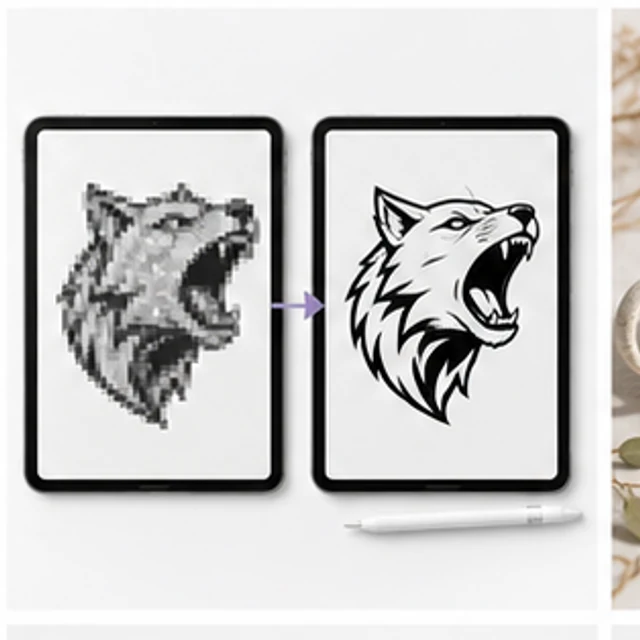
Ayzelify Vectorize helps turn low-quality raster artwork such as logos, scans, screenshots, mockup crops, and Print Lift references into cleaner vector-style review files for design and production handoff.
No. It should be reviewed for path quality, typography, negative space, colors, scale, rights, file format, and method-specific requirements before production.
Vectorize a logo when it needs clean scaling, editable paths, embroidery review, screen-print preparation, cutting paths, packaging artwork, tech-pack attachment, or repeated factory use.
Print Lift can recover visible artwork direction from a garment photo or mockup. Vectorize can then help convert that reviewed reference into a cleaner path-based handoff for designers and production teams.
Use Ayzelify to generate product visuals, ecommerce content, and buyer-ready assets, then review every output before publishing.