Ayzelify home
Guide page
Raster to Vector for Apparel: When You Need SVG, PDF, EPS, or DXF
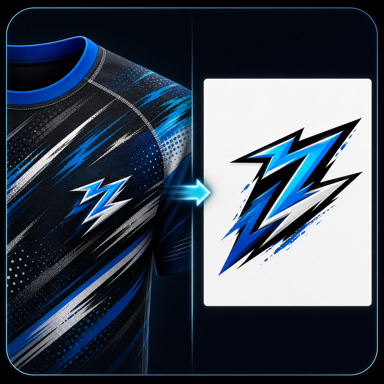
Apparel teams lose time when buyers send artwork as a screenshot, WhatsApp image, compressed JPG, blurry PNG, or old catalog crop. The image may look acceptable on a phone, but it often fails when the same logo must become a chest print, embroidery patch, woven label, vinyl cut, laser cut panel, packaging mark, or tech-pack detail. Adobe documents Image Trace as a way to convert raster artwork into editable vector artwork, while print-file guidance from providers such as Printful and Printify still emphasizes resolution, transparency, product-specific print areas, and production checks. Ayzelify Vectorize sits inside that real workflow: it helps apparel teams turn weak raster references into cleaner vector-style handoff files while keeping human review visible before production.
Clean up apparel artwork files
Short answer
Raster-to-vector conversion is useful when apparel artwork must scale, cut, print sharply, or move into a production handoff. SVG, PDF, EPS, and DXF can each help different workflows, but the converted file still needs review for paths, typography, small details, colors, line weights, stitch limits, and cutting logic.
Why this matters
Raster files such as JPG and PNG are made from pixels. They are fine for previews and some print workflows, but they can fail when a logo needs clean edges, scalable paths, embroidery digitizing, cutting lines, or repeated factory use.
Vector-style formats describe artwork as shapes and paths, which can make logos, text, badges, line art, and placement graphics easier to resize, inspect, edit, and hand off.
SVG, PDF, EPS, and DXF are not the same. The right format depends on whether the next step is design review, print proofing, embroidery digitizing, screen print separation, laser cutting, vinyl cutting, packaging, or a tech pack.
Ayzelify Vectorize helps teams create cleaner vector-style outputs from low-quality buyer artwork, Print Lift references, scanned logos, and product graphics, but it should be treated as a production starting point rather than an unchecked final file.
The final approval step should inspect path quality, font accuracy, negative spaces, small holes, color count, stroke widths, cut paths, stitch feasibility, scale, and the requirements of the actual production partner.
Practical guide
Low-quality logos slow down apparel production
A blurry logo may be good enough for a WhatsApp approval, but it can fail when the factory needs a chest print, sleeve mark, woven label, embroidery patch, hangtag, or cutting path.
Raster artwork is made of pixels, so scaling a weak JPG or PNG can expose jagged edges, soft corners, broken small text, and compression noise. Vector-style files help because the artwork becomes editable shapes and paths that can be inspected before production.
Ayzelify Vectorize gives teams a faster cleanup starting point when the original artwork is missing, but the file still needs review before it becomes a print, embroidery, or cutting deliverable.
Choose the vector format based on the handoff
SVG, PDF, EPS, and DXF are not just different download buttons. They support different expectations across designers, print shops, embroidery digitizers, cutting vendors, packaging teams, and buyer-proof workflows.
A PDF may be enough for approval or broad vendor handoff. EPS may still appear in legacy print workflows. SVG is useful for editable design review and clean web/design exchange. DXF is more relevant when the vendor needs cutting-style path logic.
The safe rule is simple: ask the production partner what they need before converting, then check the converted file against that specific use.
Review paths before production use
Vector conversion can introduce problems that are invisible in a small preview: too many anchor points, rough curves, missing counters, filled holes, broken outlines, uneven stroke widths, and simplified details.
Typography is especially sensitive. A traced wordmark can look close at first glance while the letter spacing, curves, and negative spaces are wrong. That matters for brand marks, sponsor logos, school emblems, and product labels.
Use vectorization to reduce cleanup time, then inspect the artwork with the same discipline a designer, digitizer, or print operator would use before sending it downstream.
Match the file to print, embroidery, or cutting reality
A clean vector preview does not automatically mean the file is production-ready. DTG, DTF, screen print, sublimation, embroidery, vinyl cutting, laser cutting, and packaging each bring different checks.
Print workflows may care about transparent backgrounds, print area, color count, underbase behavior, gradients, and raster resolution. Embroidery workflows may need simplified shapes and digitized stitch logic. Cutting workflows need closed paths, clean overlaps, and practical line behavior.
That is why Ayzelify positioning should stay practical: Vectorize helps prepare a better handoff file, but final production approval still belongs with the operator and the buyer.
Connect Vectorize with Print Lift and tech-pack review
The strongest apparel workflow is not a single conversion step. It is a chain: recover artwork from a garment photo with Print Lift when needed, vectorize or redraw the artwork, review the file, then attach the approved version to the product record or tech pack.
That chain prevents the same problem from repeating. The next time the product is sampled, listed, or reordered, the team has a cleaner artwork file, a source reference, a production note, and an approval trail.
For exporters and factories, this is where Vectorize moves from a design utility into operational value: fewer blocked quotes, fewer unclear logo files, cleaner buyer communication, and stronger handoff into sampling.
Common questions
When does apparel production need vector files?
Vector-style files are often useful for scalable logos, embroidery preparation, cutting paths, screen print review, packaging marks, tech-pack attachments, and buyer proofing. Some print methods may still accept high-resolution transparent raster files, so confirm the requirement first.
Can raster-to-vector conversion be perfect?
Not always. Automatic conversion can add extra points, damage typography, simplify small details, miss holes, roughen curves, or shift colors. A designer or production operator should inspect the output.
Which format should I use: SVG, PDF, EPS, or DXF?
Use the format requested by the production partner. SVG can be useful for editable design review, PDF for proofing and broad handoff, EPS for many legacy print workflows, and DXF for cutting-style path review when required.
Should I vectorize every PNG logo?
No. A clean high-resolution transparent PNG may work for some print jobs. Vectorization becomes more important when the logo must scale sharply, be edited, become embroidery/cut paths, or be reused across many products.