What should the first Shopify apparel image show?
The first image should clearly show the product the shopper is buying, usually as a clean product, ghost mannequin, or model image with minimal distractions.
Resource page
Use this resource to plan the image order and review criteria for an apparel product gallery before uploading images to Shopify.
A Shopify apparel gallery should usually start with a clear product image, then show alternate views, details, fit or model context, lifestyle use, and any size or material proof that helps the shopper decide.
A Shopify gallery has to do two jobs at once: make the product look desirable and let the shopper inspect the item with enough confidence to buy.
Use the first images for clarity: main product view, back or alternate view, detail closeup, and any key material or fit context. Use later images for campaign, lifestyle, or social proof style visuals.
Do not publish generated images that show a different garment from the one the customer will receive. Gallery polish only helps when it stays accurate.
Ayzelify helps generate the image options. This checklist helps ecommerce teams choose the sequence that is clear, accurate, and useful.
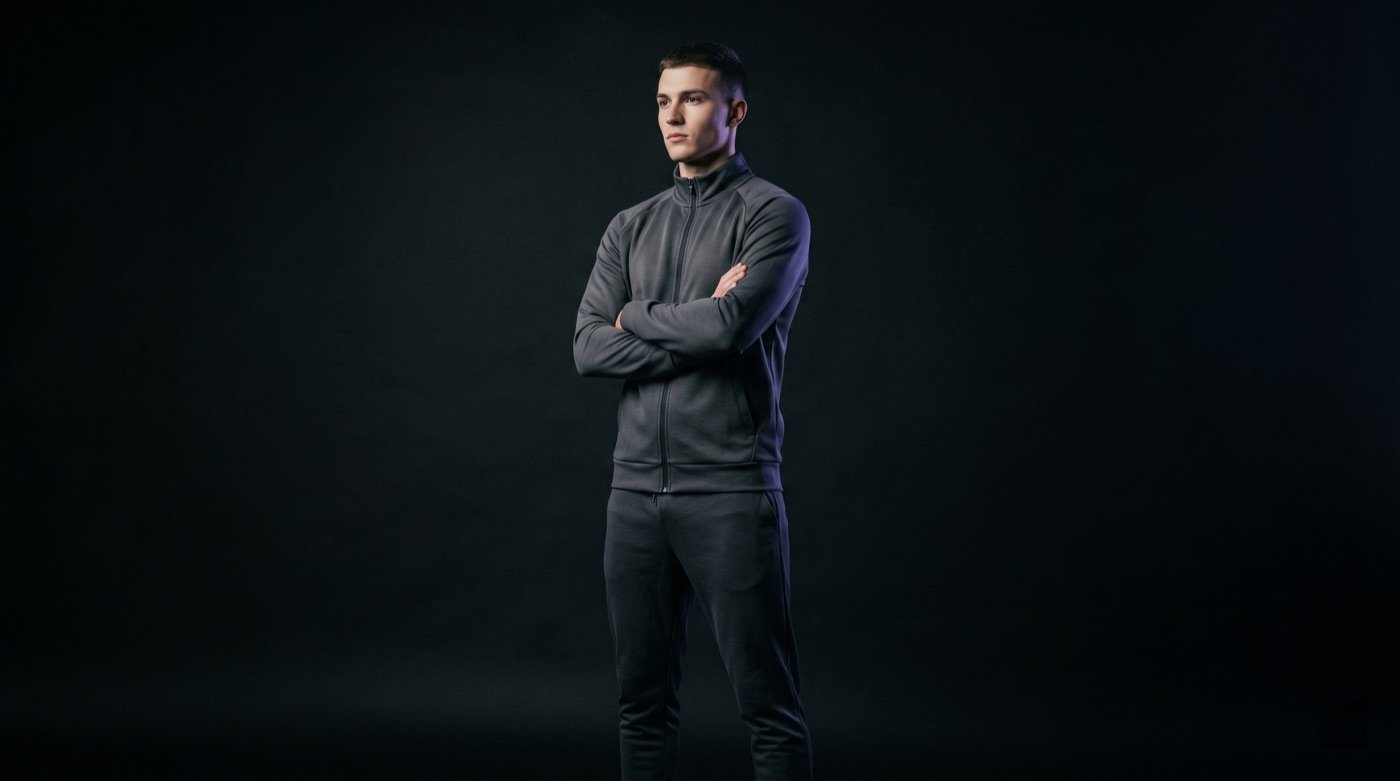
The first image should clearly show the product the shopper is buying, usually as a clean product, ghost mannequin, or model image with minimal distractions.
Lifestyle images usually work best after the shopper has already seen the product clearly through main, alternate, and detail views.
Yes. Ayzelify workflows can use uploaded product references or brand inputs to generate product-focused visuals for review.
Yes. Exporters can create product visuals, listing copy drafts, and structured catalog inputs for marketplaces such as Alibaba and eBay.
Use Ayzelify to generate product visuals, ecommerce content, and buyer-ready assets, then review every output before publishing.